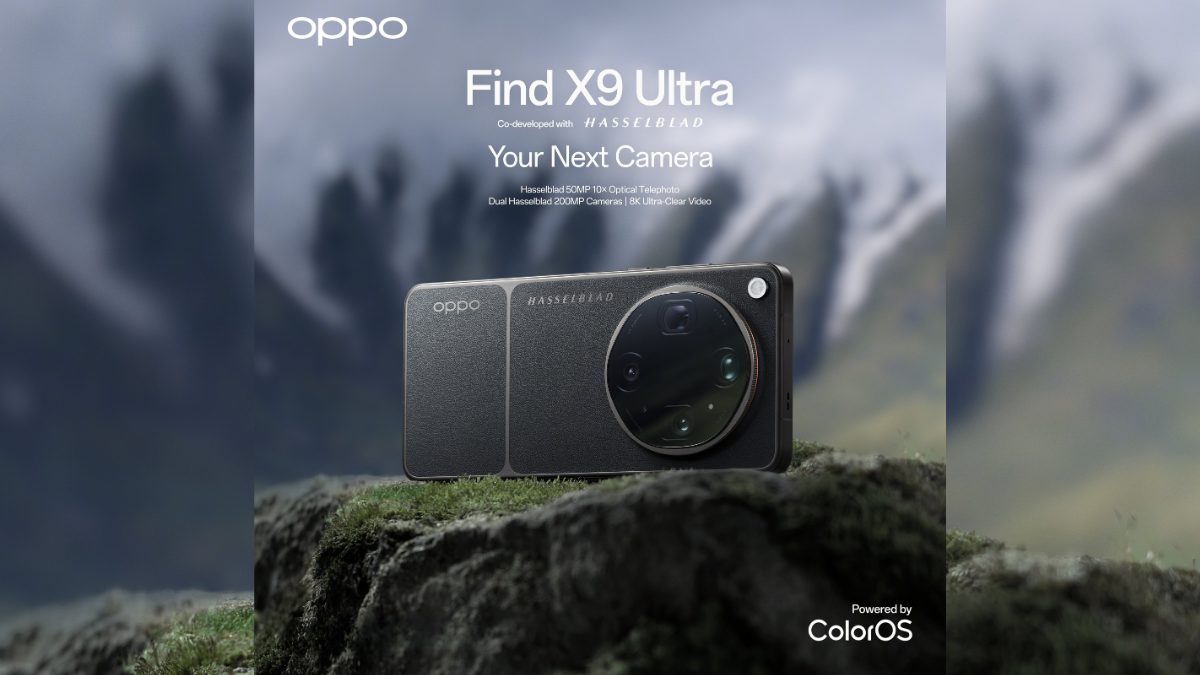
OPPO has reportedly confirmed that its upcoming flagship smartphone, the Find X9 Ultra, which launches on April 21, will get Apple AirDrop support with Android Quick Share. According to a report by 9To5Google, OPPO has said that it is collaborating with Google to enable Quick Share compatibility with Apple devices for the Find X9 Ultra, enabling it to share files, photos and videos wirelessly with Apple devices such as iPhones, Macs and iPads.
OPPO Find X9 Ultra: AirDrop support
OPPO currently offers wireless file sharing support with Apple devices using the O+ Connect app; however, the report stated that OPPO has confirmed that the new feature will not require any additional app support. This suggests that cross-platform file sharing on the OPPO Find X9 Ultra will work similarly to how the feature works on supported Google Pixel and Samsung Galaxy smartphones.
For the uninitiated, Quick Share-AirDrop compatibility rolled out to the Google Pixel 10 series earlier this year and was later expanded to the Pixel 9 series and the Samsung Galaxy S26 series.
To use the feature, the Apple user needs to set the AirDrop setting to “Everyone for 10 minutes” on their iPhone, iPad or Mac. From an Android device, users can open Quick Share, select a nearby Apple device and send files. The receiving user must approve the transfer before it begins. The system uses a combination of Bluetooth and Wi-Fi to establish a direct connection between devices.
How to share files from an Android phone to an iPhone/iPad/Mac
-
Before you begin, ensure Quick Share is updated via the Google Play Store or the latest system software. -
On your iPhone, iPad or Mac, open Settings and go to AirDrop. -
In the AirDrop settings, set visibility to Everyone for 10 Minutes. -
On your Android phone, select the file or photo you want to send, then tap Share. -
Choose Quick Share from the sharing menu. -
Select the nearby Apple device from the list of visible devices. -
On your Apple device, tap or click Accept when the AirDrop prompt appears.
How to share files from an iPhone/iPad/Mac to an Android phone
-
On your Android phone, open Settings and search for Quick Share. -
In Quick Share settings, set visibility to Everyone for 10 Minutes. -
On your Apple device, select the file or photo you want to send, then tap Share. -
Choose AirDrop from the options. -
Select the Android phone from the device list. -
On your Android device, tap Accept when the Quick Share notification appears.