If you have spent any time on Pinterest or Instagram, you have probably seen instant cameras popping up everywhere, almost like a must-have item. But beyond the looks, the real question is whether such devices add something special to your moments or if it’s just an expensive pick that most people will not use beyond the novelty phase.
I have been using the Instax Mini 13 for a few weeks now to see how it is to live with a point-and-shoot camera that is easy to use and presents you with actual physical photographs. Here is my experience:
Design and build
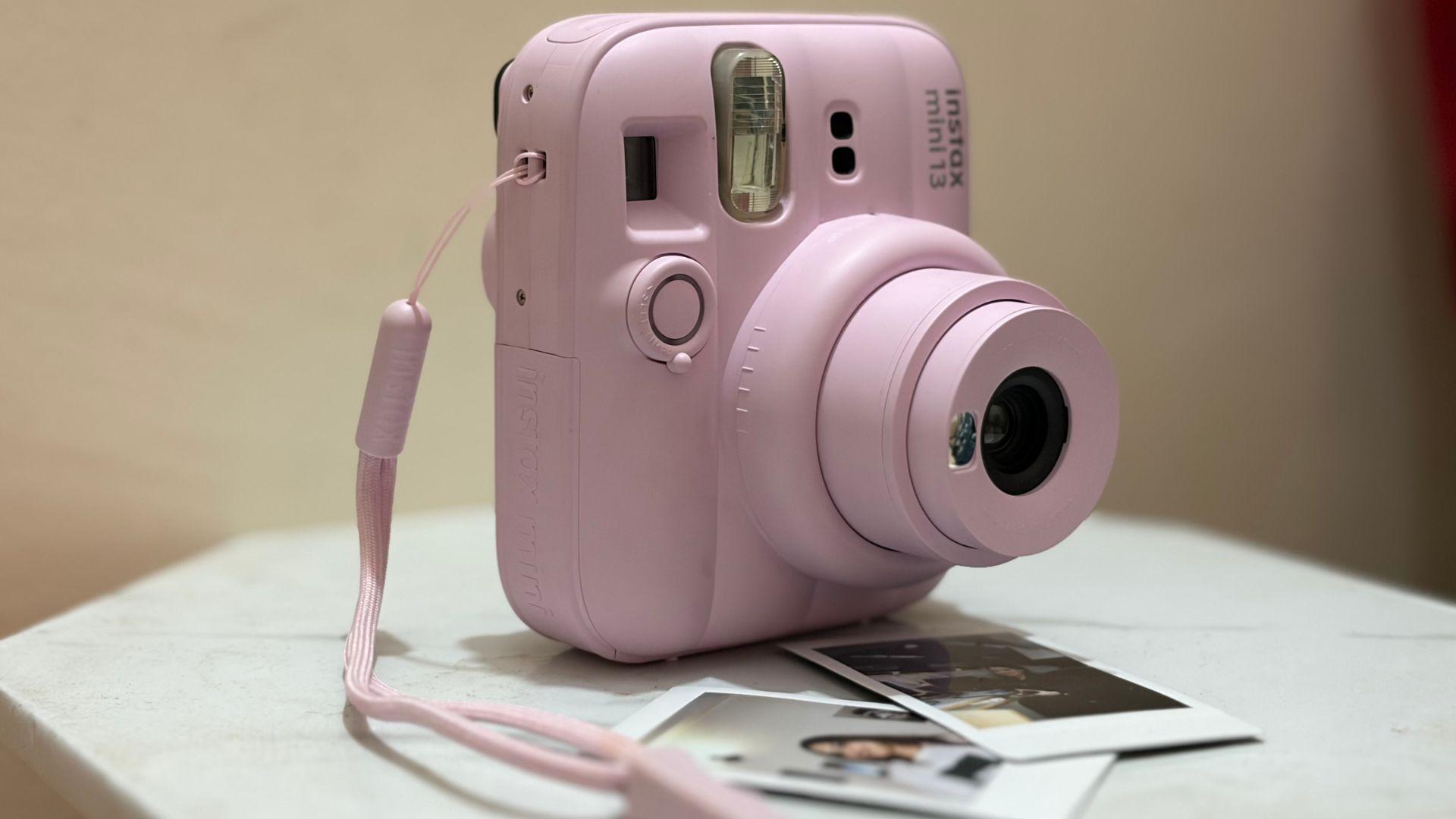
I’ve been using the Candy Pink variant, and like the other colour options, it leans towards a more playful and visually appealing design. It’s easy to see why this camera fits into the “cute gadget” trend that’s popular online. The design is simple and eye-catching, which likely adds to its appeal for casual users.
On the practical side, the Instax Mini 13 doesn’t bring any major changes in terms of design compared to its predecessor. It looks very similar to the Mini 12, with a similar rounded body and slightly bulky form. I also had the Mini 11 on hand, and that too follows a similar design language, with only minor differences in things like button placement and lens details. Compared to the Mini 11, the Mini 13 feels a bit bulkier.
Despite the slightly bulky build, the camera is comfortable to hold and doesn’t feel too heavy in everyday use. The grip is basic but effective, helped by the textured finish on the body that prevents it from slipping out of your hand.
In the box, you also get a strap that can be attached to either side of the camera. It’s useful in preventing accidental drops, especially while carrying it around. At the same time, it adds a small aesthetic touch, almost like an accessory for the camera.
It should be noted that the camera is mainly designed for vertical shots. While you can still take horizontal photos by adjusting your grip, it’s not the most natural way to hold it. At times, you might even end up accidentally covering the sensor or lens while trying to reposition your hand.
Set up and basic functioning
Getting started with the Mini 13 is straightforward. It runs on AA batteries, so there’s no need to worry about charging cables or power adapters. Once you load the batteries and insert a pack of Instax Mini film, the camera is ready to shoot.
There’s also a small counter on the back that shows how many shots you have left, which is useful. It’s a simple feature and helps you keep track before taking a photo.
That said, I did find it a bit confusing at times. The number dial doesn’t always align perfectly and can sit between two numbers, which makes it slightly unclear how many shots are actually remaining.
To turn the camera on, you have to twist the lens, which feels intuitive and adds a bit of tactile satisfaction to the process. Once it’s on, a small red light indicates that the camera is ready to shoot.
The process of taking pictures is as simple as it can be. There are no menus, no digital screen and no complicated settings. You just turn it on, frame your shot and press the shutter. That simplicity is clearly the main appeal here.
Controls
The Instax Mini 13 is simply a point-and-shoot camera with no fuss. There are no manual options for exposure, focus or other settings, as the camera handles everything on its own. This makes it easy to use, even if you are picking it up for the first time, since there’s very little to figure out.
The only real control you get here is the focus setting, and even that is quite limited. There are two modes to choose from: close-up and standard. If your subject is about one to two feet away, you need to switch to close-up mode. For anything beyond that, the standard setting works fine.
It sounds simple, but it’s also easy to forget. In my case, I ended up with a couple of soft, slightly out-of-focus shots in the beginning because I didn’t switch modes in time. Since each film is worth some extra money, these small mistakes feel more noticeable. Over time, you get used to it, but it does require some attention, especially if you’re moving between selfies and regular shots.
The viewfinder, on the other hand, is fairly reliable. What you see through it is quite close to what you get in the final print. This helps more than you might expect. With some instant cameras, framing can feel a bit unpredictable, which often leads to wasted shots. That’s less of a problem here, and it makes the overall shooting experience a bit more consistent.
One of the main additions in the Mini 13 is the self-timer. There’s a small lever around the shutter button that lets you choose between a two-second or ten-second delay. It’s a useful feature, especially for group photos or when you want to include yourself in the frame. However, this improvement also highlights one of the camera’s major drawbacks. There’s no tripod mount. That means you cannot easily place the camera on a tripod for stable shots.
In practice, you’ll end up placing it on tables, shelves or any flat surface you can find.
Fujifilm does include a small rubber wedge attached to the strap, which can help prop the camera up at an angle. But it’s not the most reliable solution. This often results in awkward framing, especially for group shots, where the camera ends up positioned too low. You might find yourself adjusting your position to get the right angle, which can be a bit inconvenient.
Shots and selfies
Taking selfies on the Mini 13 is fairly simple. There’s a small mirror placed next to the lens that helps you roughly frame your shot. It’s not extremely precise, but it does the job for casual use, especially when you’re just trying to capture a quick moment.
In real use, this works well for things like clicking a quick selfie with a friend at a café or capturing a group moment during a small get-together. You don’t have to overthink it, just line yourself up using the mirror and press the shutter.
That said, distance plays an important role here. I noticed that shots tend to look better when the camera is held slightly farther away. If you bring it too close, your face can end up looking oversized in the frame, which isn’t always flattering. For example, holding it at arm’s length gives a more balanced shot compared to holding it too close to your face.
Another thing you quickly realise is how mindful you become while taking photos. Since each shot is printed on film, you naturally think twice before pressing the shutter. It’s very different from using a phone, where you can take multiple photos and delete the ones you don’t like. Here, every click counts.
Because of this, I wouldn’t recommend it for everyday use. The films are costly, and you also need to be a bit more careful while handling the camera compared to regular gadgets. It feels more like something you bring out occasionally rather than something you carry and use all the time.
Image quality
After you press the shutter, the camera makes a soft mechanical sound, and the photo begins to slide out from the top. It doesn’t fall out completely, and you need to gently pull it out yourself. Once the print is out, the image slowly starts to develop. It usually takes around 30 to 60 seconds for the photo to appear clearly, which adds a bit of anticipation to the whole experience.
Image quality is not really the main focus of this camera, and that becomes clear once you start using it. The photos are not particularly sharp, and the exposure can be a bit inconsistent depending on the lighting. In bright conditions, the results come out fairly decent, but in other situations, the camera tends to struggle.
I tried using it in both bright white lighting and warmer yellow indoor lighting. In yellow light, the photos often turned out slightly darker than expected. The flash does help in low light, especially for subjects that are closer to the camera, like a person standing right in front of you. But it doesn’t do much for anything in the background, which can end up looking dim or underexposed.
That said, this is also part of what makes instant cameras appealing. At this print size, the images have a certain charm. They are not perfect, but they feel more personal and have a slightly nostalgic quality to them.
If you are expecting crisp, detailed photos, this camera will likely disappoint. But if you’re okay with softer, more casual-looking images that capture the moment rather than perfection, it does the job well enough.
Instax Up! app
Fujifilm also offers a companion app called Instax Up!, which is meant to help you keep a digital copy of your printed photos. The idea is simple: you scan your physical prints and store them in one place on your phone.
The app is fairly straightforward to use. When you open it, you’ll see options like Scan, Gallery, Album and Instax Days. To digitise a photo, you just place the print on a flat surface and scan it through the app. It then creates a digital version that gets saved in your gallery within the app.
Once scanned, you can make basic edits like adjusting brightness, contrast, saturation and colour temperature. There’s also an auto-correct option if you don’t want to tweak things manually. It’s not a full editing suite, but it’s enough to make small improvements.
You can also add a bit more context to your photos by editing details like the date, location or giving them a name tag. The “Instax Days” section is a nice touch; it shows your photos in a calendar format, organised by the day they were taken. Sharing is as simple as well. You can send the scanned images directly through apps like WhatsApp or email, or just save them to your phone’s gallery.
What to Keep in Mind before using the Instax Mini 13
-
After making a few mistakes myself and ending up with some wasted shots, here are a few things worth keeping in mind while using the Instax Mini 13
-
Don’t take out films after loading: Once you insert a new pack of film, avoid opening the back lid or exposing it to light before all the shots are used. Doing so can ruin the remaining film, leading to blank or overexposed prints.
-
Don’t shake the photo while it develops: It might be tempting, but shaking doesn’t speed up the process. It can actually affect how the image develops.
-
Avoid pulling the film out forcefully: Once the photo starts ejecting, don’t try to pull it out quickly. Let it come out naturally to avoid damaging the print.
-
Don’t block the print exit area: Make sure your hand or any surface isn’t covering the slot where the photo comes out from. Blocking it can interrupt the printing process or damage the film as it ejects.
-
Blocking the lens or sensor accidentally: While adjusting your grip, especially for horizontal shots, it’s easy to cover part of the lens or sensor with your fingers. This can affect exposure or ruin the shot.
-
Don’t leave used film packs inside for too long: Once finished, remove the empty pack before inserting a new one to avoid jams or misfeeds.
Who is this camera for?
The Instax Mini 13 is best suited for someone who wants a simple and enjoyable way to capture moments without getting into technical details. It’s not built to replace your phone or a proper camera, but to offer something different, instant, physical photos with minimal effort.
It fits well into casual use. Think small gatherings, birthdays, trips or even journaling and scrapbooking. The focus here isn’t on perfect image quality, but on creating something tangible that you can keep, share or stick onto a wall or notebook.
At the same time, there are clear trade-offs. The image quality is average, controls are limited, and the cost of film can add up over time. It’s the kind of device you bring out for specific moments rather than something you use daily.
Where it works best is in its simplicity. You don’t need to understand settings or spend time adjusting anything. Just point, shoot and wait for the print. That ease of use makes it accessible to almost anyone.
However, if you prefer having control over your shots or want to experiment with photography, this camera will likely feel restrictive. It doesn’t offer much flexibility beyond the basics.
Overall, the Mini 13 leans more towards being a lifestyle gadget than a serious camera. It’s for those who enjoy the experience of instant photography and are okay with its limitations.
-
Price: Rs 10,999
-
Colours: Dreamy Purple, Candy Pink, Frost Blue, Lagoon Green and Clay White
-
Mini format film pack (Pastel Galaxy): Rs 899